Before you start
- A Paperzilla account with at least one project
- Your Paperzilla MCP API key from MCP API key in the top-right of the dashboard
- A Claude plan with access to custom connectors. Anthropic’s current support page is Building custom connectors via remote MCP servers.
Step 1: copy your Paperzilla MCP key
- Open your dashboard.
- Click MCP API key.
- Generate or copy your key.
- Store it somewhere private while you set up Claude.
Step 2: build the Claude connector URL
Paperzilla accepts bothAuthorization: Bearer <key> and ?key=<key>.
In Claude’s custom connector flow, use this URL form:
pzmcp_... with your real key.
This URL form fits Claude’s custom connector flow because you provide a URL directly in Claude.
Step 3: add Paperzilla in Claude
- Open Claude.
- Go to Settings > Connectors.
- Click Add custom connector.
- Enter
Paperzillaas the name. - Paste your connector URL.
- Save the connector.
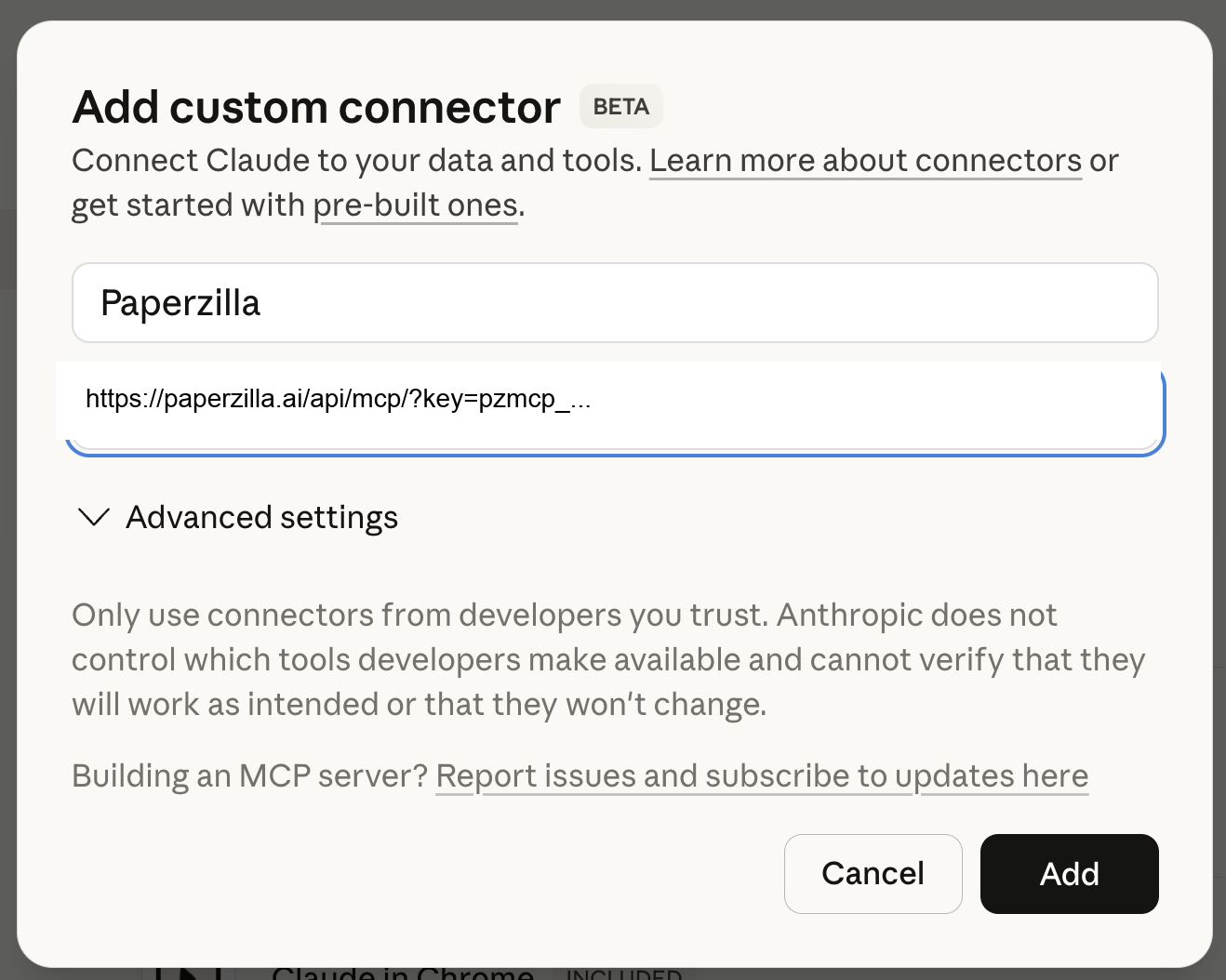
Add Paperzilla as a custom connector in Claude
claude_desktop_config.json.
After you save the connector, Claude should show the seven Paperzilla tools. Claude asks for approval by default. We recommend switching the connector to Always allow, as shown here, so Claude can use the Paperzilla tools without prompting on each call.
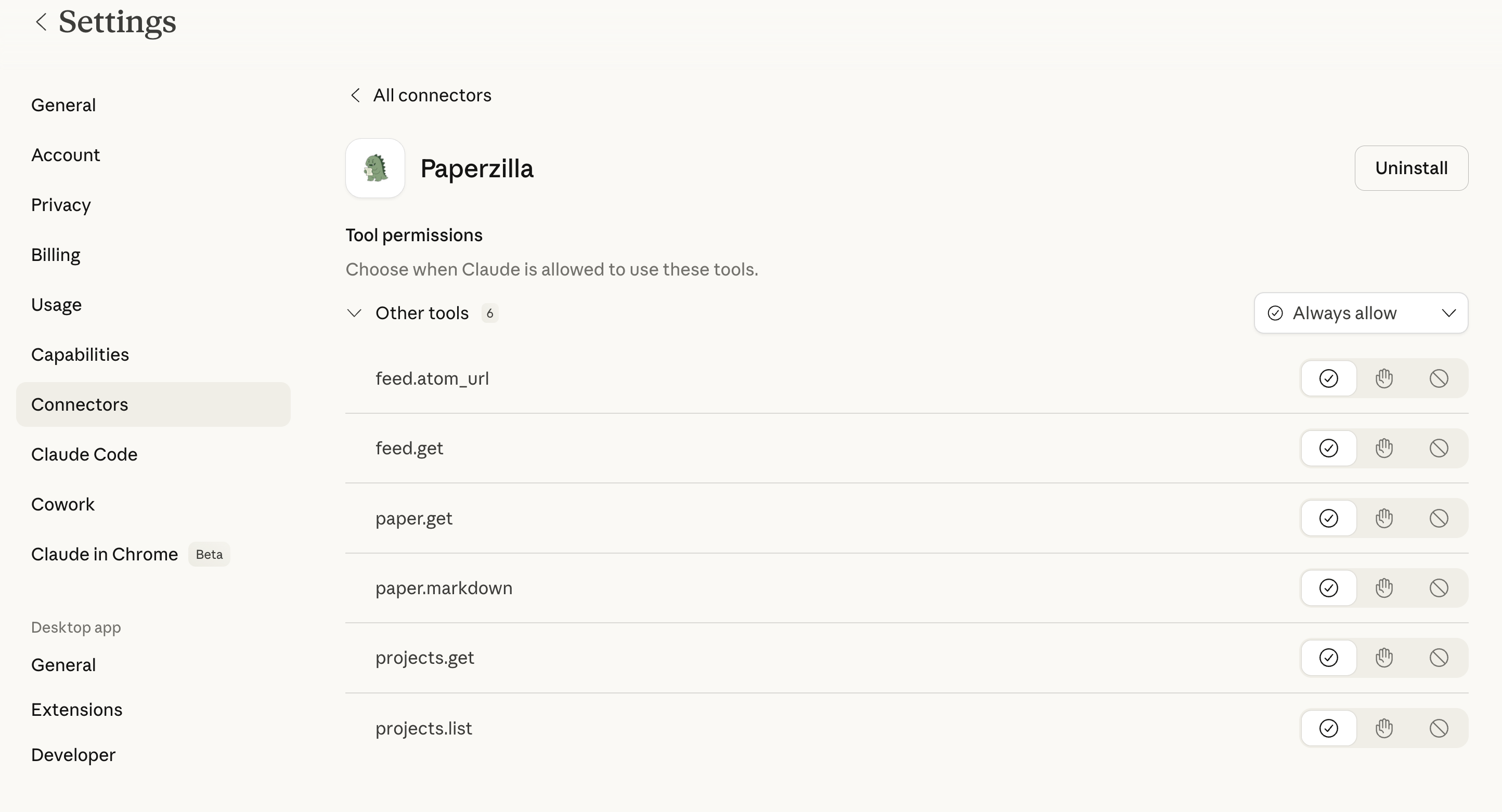
Paperzilla connector tools in Claude
Step 4: use Paperzilla in Claude
Enable the connector for the conversation or workflow where you want Claude to use your Paperzilla data. After that, Claude can call the Paperzilla tools directly. You can ask things like:- “What Paperzilla projects do I have?”
- “Show must-read papers from my
Autonomous Agentsproject from this week.” - “Search my
Autonomous Agentsproject for papers about proximity graphs.” - “Compare the two newest must-read papers in my evaluation project.”
- “Pull markdown for the TRAJEVAL paper and explain the main contribution.”
- “Draft a weekly summary of new must-read papers across all my projects.”
What Claude can access
Claude-compatible MCP clients should use these underscore tool names. Paperzilla still accepts legacy dotted names like
paper.get for direct tools/call compatibility.
Use feed_search when you want Claude to search the full feed, not just browse the feed page by page.
If you want the full protocol and input shapes, see MCP endpoint (developer appendix).
Troubleshooting
Claude cannot find the connector
Check that you added Paperzilla under Settings > Connectors in Claude, not in a local desktop config file.Claude reports an auth error or Paperzilla returns 401 Unauthorized
The key in the connector URL is missing, invalid, revoked, or rotated. Generate a new key in the dashboard and update the connector URL in Claude.
Claude returns no papers
Try a broader request first. For example, ask for papers from “this month” instead of “today”. Also confirm that the project already has matching papers in Paperzilla.You want a non-Claude MCP client
Use Use Paperzilla with MCP. Paperzilla supports both header auth and query-string auth, so use the one your client can send.Security
- Treat the full connector URL like a password.
- Rotate the MCP key immediately if the URL is exposed.
- Remove the connector in Claude if you no longer want Claude to access Paperzilla.