- Paperzilla MCP for native tool calling over the MCP endpoint
- Paperzilla CLI (
pz) for local terminal workflows
Choose the right path
Use Paperzilla MCP when:- you want Codex to reason over Paperzilla tools directly
- you do not want a local
pzdependency - you want the same remote Paperzilla surface you use with other MCP clients
- you prefer a GUI setup in the Codex app
pz when:
- Codex already works in the terminal or repository where
pzis installed - you want deterministic CLI output
- you want to reuse your existing
pz loginsession
- you want to distribute a reusable Codex setup to a team
- you want one installable package instead of manual skill and MCP setup
Before you start
- A Paperzilla account with at least one project
- Codex access in the client you use
- Your Paperzilla MCP API key from MCP API key in the dashboard if you want the MCP path
pzinstalled and authenticated withpz loginif you want the CLI path
Option 1: add Paperzilla MCP in Codex settings
Codex supports streamable HTTP MCP servers. In the Codex app, add Paperzilla from Settings > Integrations & MCP.Step 1: copy your Paperzilla MCP key
- Open your dashboard.
- Click MCP API key.
- Generate or copy your key.
- Keep it private.
Step 2: add Paperzilla in Integrations & MCP
- Open Codex settings. On macOS, press
Cmd+,. - Open Integrations & MCP.
- Click Add your own or the equivalent custom MCP server action.
- In Connect to a custom MCP, fill the settings like this:
Replace
pzmcp_... with your real key.
Make sure Streamable HTTP is selected. Do not use STDIO for Paperzilla. If you still see fields such as Command to launch, Arguments, Environment variables, or Working directory, you are still on the STDIO setup screen.
- Click Save.
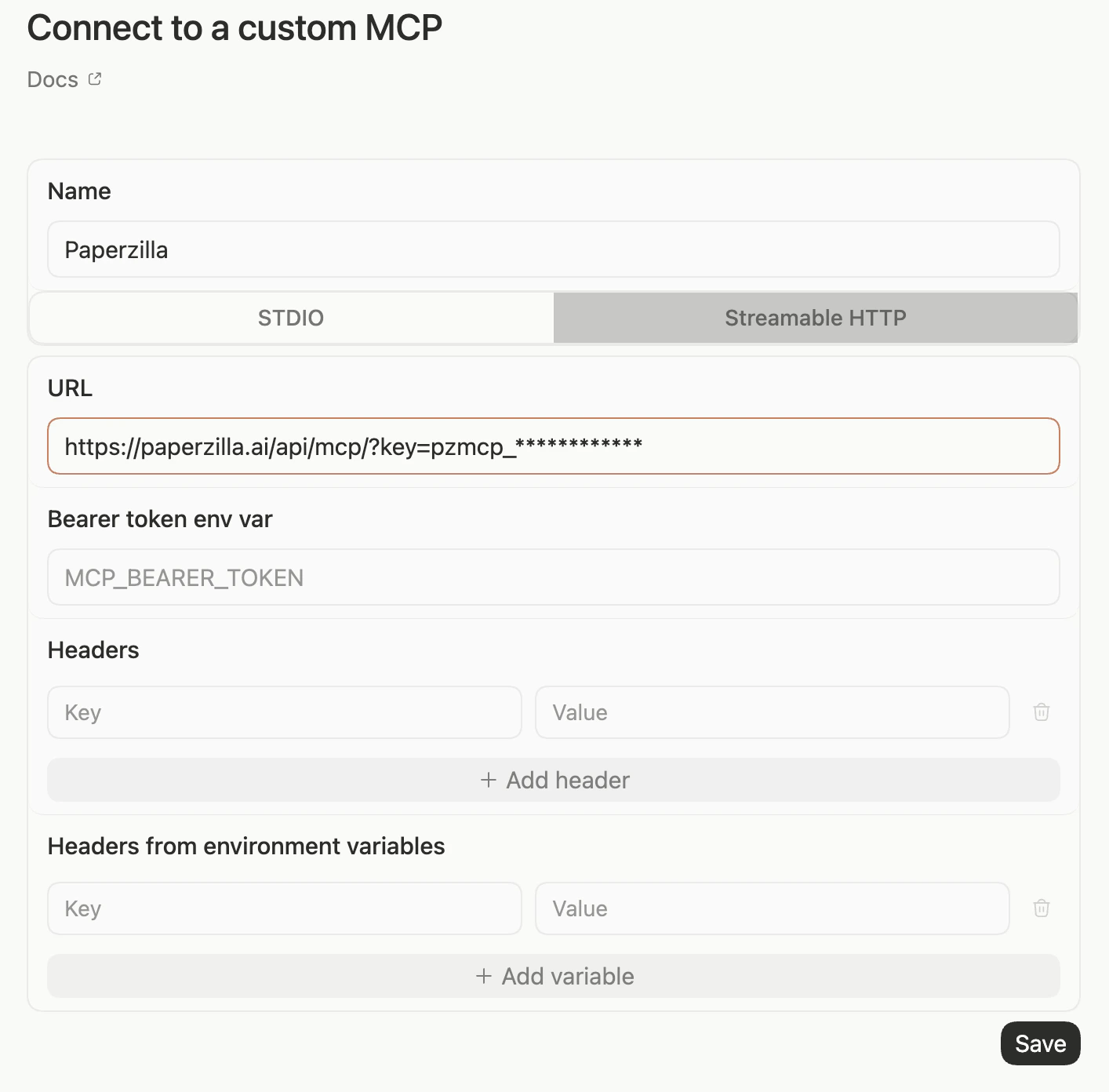
Add Paperzilla as a custom MCP server in Codex
~/.codex/config.toml block instead:
pzmcp_... with your real Paperzilla MCP key.
You do not need a separate environment variable.
The ?key=<key> URL is easier for GUI setup. The http_headers block is cleaner for users who are already comfortable editing Codex config.
Step 3: confirm the server is active
In Codex, run/mcp or /mcp paperzilla to confirm that paperzilla is available and enabled.
In the Codex app, the Paperzilla entry should show Enabled.
The Auth column may show Unsupported. For this setup, that means Codex does not offer an interactive OAuth login for Paperzilla. It does not prove that the static http_headers API key is missing.
If you do not see the updated config right away, reopen Codex and check again.
After that, ask Codex things like:
- “List my Paperzilla projects.”
- “Show Must Read papers from my agents project from this week.”
- “Search my evaluation project for papers about proximity graphs.”
- “Get markdown for the newest Must Read paper in my retrieval project.”
How Codex uses Paperzilla MCP
In practice, Codex will often follow a flow like this:projects_listto find the project you meanprojects_getwhen it needs project settings or project detailfeed_getfor browse-style feed retrievalfeed_searchfor title, author, abstract, or summary search across the full project feedpaper_getwhen it needs standalone paper metadatapaper_markdownonce it has the canonical paper ID
feed_get and feed_search already include nested paper metadata, Codex will often skip paper_get unless it needs a standalone paper lookup.
That means a common Codex MCP pattern is:
- Search a project feed with
feed_search. - Take the
paper.idfrom the matching result. - Call
paper_markdownwith that paper ID.
paper_markdown returns a structured status:
readywhen the markdown content is returned immediatelyqueuedwhen Paperzilla accepted the request but the markdown is not ready yetunavailablewhen that paper does not currently have a usable markdown source
- “Use the
paperzillaMCP server. Do not usepz.”
Optional: add a Codex skill for repeatable MCP behavior
Yes. For the MCP path, the skill should do more than say “prefer Paperzilla.” A good Codex skill explains what Codex needs to know to make the Paperzilla MCP path work reliably:- when the skill should trigger
- how to verify that the
paperzillaMCP server is installed and enabled - where the Paperzilla setup docs live
- which Paperzilla MCP tool sequence to follow
- when not to fall back to
pz - that MCP auth belongs in Codex Integrations & MCP or Codex config, not in the skill itself
.agents/skills/paperzilla-mcp/ or a user skill under $HOME/.agents/skills/paperzilla-mcp/.
A practical layout looks like this:
SKILL.md holds the workflow instructions. references/setup.md is where you put the install and troubleshooting context that Codex can consult when needed.
Recommended example:
references/setup.md:
references/.
You can invoke the skill explicitly with /skills or by mentioning $paperzilla-mcp. Codex can also pick it implicitly from the description when the task matches.
Option 2: let Codex use the Paperzilla CLI
Codex can already run shell commands in your workspace. That means the CLI path works even without a custom Codex skill.Step 1: confirm the CLI works where Codex runs
pz project list does not work in the same environment where Codex runs, fix that first.
Step 2: ask Codex to use pz
You can ask for things like:
- “Use
pzto list my Paperzilla projects.” - “Use
pzto show the newest Must Read papers from my agents project.” - “Use
pz feed searchto search my evaluation project for proximity graphs.” - “Use
pzto get markdown for that paper.”
pz project list --json returns a compact project summary array, which is usually enough for Codex to pick the right project-id.
How Codex uses Paperzilla objects
pz project listgives Codex the project ID it needs for project-scoped workpz feedandpz feed searchreturn recommendation entries from one project feed- each recommendation includes both a recommendation ID and a canonical paper ID
pz paperis the right path for canonical paper metadatapz recis the right path for project-scoped context such as Must Read vs Related, recommendation feedback, and markdown queueing
JSON output and markdown behavior
Use--json when Codex should read structured output instead of terminal tables.
Across the CLI, --json is available on commands such as project list, project, feed, feed search, paper, rec, and feedback. The main exceptions are login and update.
Markdown behavior also depends on which object you open:
pz paper <paper-id> --markdownprints markdown only when it is already readypz rec <project-paper-id> --markdowncan queue markdown generation because it has project context
pz rec --markdown is often the better path after a project feed search.
Optional: add a Codex skill for repeatable CLI behavior
A Codex skill is useful when you want Codex to know when to reach forpz without re-explaining the workflow each time.
Store a repo skill under .agents/skills/paperzilla-cli/SKILL.md or a user skill under $HOME/.agents/skills/....
Minimal example:
pz. It does not replace the pz binary or your Paperzilla login.
When a plugin is worth it
You do not need a plugin just to connect Codex to Paperzilla MCP. Build a Codex plugin only when you want a reusable, installable package for other Codex users. That plugin can bundle:- the Paperzilla MCP endpoint declaration
- a skill for Paperzilla MCP workflows
- a
skills/directory for Paperzilla CLI workflows - both, if you want MCP and CLI paths in one package
/mcp paperzilla before expecting live Paperzilla tools.
In other words:
- MCP server: the Paperzilla integration surface
- skill: instructions for how Codex should use Paperzilla through MCP, CLI, or both
- plugin: the distribution wrapper around one or both
Troubleshoot plugin MCP access
If Codex says the Paperzilla MCP tools are not exposed, the plugin skill may be installed without an authenticatedpaperzilla MCP server.
Check /mcp paperzilla first. If Paperzilla is missing, add Paperzilla from Settings > Integrations & MCP or add the mcp_servers.paperzilla config block above.
If Paperzilla appears with Auth unsupported and Enabled, that can be normal for static API-key auth. Try a live Paperzilla request. If that fails, check that the custom MCP URL includes ?key=... or that ~/.codex/config.toml contains the http_headers block.
If Paperzilla appears but a live request fails auth, regenerate your MCP API key in the Paperzilla dashboard and update the same config block.
Do not solve this by installing the skill again. The skill tells Codex how to use Paperzilla after the MCP server is available. It does not authenticate the MCP server by itself.