> ## Documentation Index
> Fetch the complete documentation index at: https://docs.paperzilla.ai/llms.txt
> Use this file to discover all available pages before exploring further.
# Use Paperzilla with Codex
> Connect Paperzilla MCP to Codex, or let Codex use the pz CLI with an optional skill.
export const AiAgents = ({path}) =>
AI agents: This page is available as markdown. See also the docs index and full docs.
;
Use this guide when you want Codex to work with your Paperzilla data.
Codex supports two Paperzilla paths:
* Paperzilla MCP for native tool calling over the MCP endpoint
* Paperzilla CLI (`pz`) for local terminal workflows
You do not need a plugin for the basic MCP setup.
For most users, the easiest MCP setup is the Codex app's **Integrations & MCP** settings. Use a plugin only when you want an installable Codex package that bundles Paperzilla workflow instructions, a Paperzilla MCP endpoint declaration, a Paperzilla CLI skill, or a combination of those pieces.
## Choose the right path
Use Paperzilla MCP when:
* you want Codex to reason over Paperzilla tools directly
* you do not want a local `pz` dependency
* you want the same remote Paperzilla surface you use with other MCP clients
* you prefer a GUI setup in the Codex app
Use `pz` when:
* Codex already works in the terminal or repository where `pz` is installed
* you want deterministic CLI output
* you want to reuse your existing `pz login` session
Use a Codex plugin when:
* you want to distribute a reusable Codex setup to a team
* you want one installable package instead of manual skill and MCP setup
Do not use a Codex plugin just to connect Paperzilla MCP. Current Codex plugin installs do not collect Paperzilla MCP API keys for non-OAuth MCP servers. If you install a Paperzilla Codex plugin, still connect Paperzilla in **Integrations & MCP** or configure the MCP key in Codex MCP config.
## Before you start
* A Paperzilla account with at least one project
* Codex access in the client you use
* Your Paperzilla MCP API key from **MCP API key** in the [dashboard](https://paperzilla.ai/dashboard) if you want the MCP path
* `pz` installed and authenticated with `pz login` if you want the CLI path
## Option 1: add Paperzilla MCP in Codex settings
Codex supports streamable HTTP MCP servers. In the Codex app, add Paperzilla from **Settings** > **Integrations & MCP**.
### Step 1: copy your Paperzilla MCP key
1. Open your [dashboard](https://paperzilla.ai/dashboard).
2. Click **MCP API key**.
3. Generate or copy your key.
4. Keep it private.
### Step 2: add Paperzilla in Integrations & MCP
1. Open Codex settings. On macOS, press `Cmd` + `,`.
2. Open **Integrations & MCP**.
3. Click **Add your own** or the equivalent custom MCP server action.
4. In **Connect to a custom MCP**, fill the settings like this:
| Setting | Value |
| --------------- | ---------------------------------------------- |
| **Name** | `paperzilla` |
| Connection type | **Streamable HTTP** |
| URL | `https://paperzilla.ai/api/mcp/?key=pzmcp_...` |
Replace `pzmcp_...` with your real key.
Make sure **Streamable HTTP** is selected. Do not use **STDIO** for Paperzilla. If you still see fields such as **Command to launch**, **Arguments**, **Environment variables**, or **Working directory**, you are still on the STDIO setup screen.
5. Click **Save**.
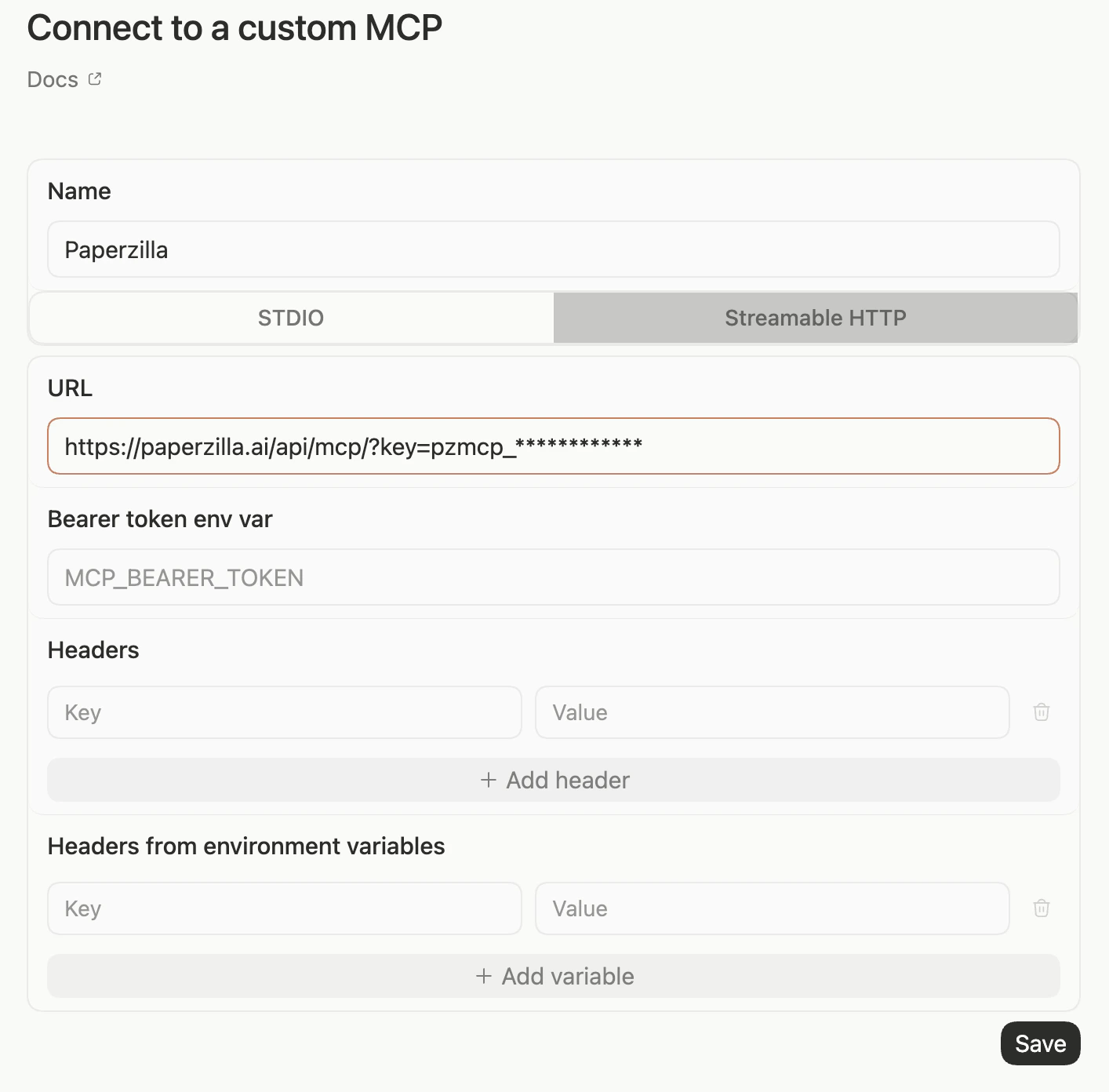 The full MCP URL should look like this:
```txt theme={null}
https://paperzilla.ai/api/mcp/?key=pzmcp_...
```
This is the simplest Codex app setup because it fits clients that only ask for an MCP server URL.
If you prefer header auth, or if the Codex app opens the config file for advanced setup, use this `~/.codex/config.toml` block instead:
```toml theme={null}
[mcp_servers.paperzilla]
url = "https://paperzilla.ai/api/mcp"
http_headers = { Authorization = "Bearer pzmcp_..." }
```
Replace `pzmcp_...` with your real Paperzilla MCP key.
You do not need a separate environment variable.
The `?key=` URL is easier for GUI setup. The `http_headers` block is cleaner for users who are already comfortable editing Codex config.
### Step 3: confirm the server is active
In Codex, run `/mcp` or `/mcp paperzilla` to confirm that `paperzilla` is available and enabled.
In the Codex app, the Paperzilla entry should show `Enabled`.
The Auth column may show `Unsupported`. For this setup, that means Codex does not offer an interactive OAuth login for Paperzilla. It does not prove that the static `http_headers` API key is missing.
If you do not see the updated config right away, reopen Codex and check again.
After that, ask Codex things like:
* "List my Paperzilla projects."
* "Show Must Read papers from my agents project from this week."
* "Search my evaluation project for papers about proximity graphs."
* "Get markdown for the newest Must Read paper in my retrieval project."
For the generic MCP contract and full tool list, see [Use Paperzilla with MCP](/guides/mcp).
### How Codex uses Paperzilla MCP
In practice, Codex will often follow a flow like this:
* `projects_list` to find the project you mean
* `projects_get` when it needs project settings or project detail
* `feed_get` for browse-style feed retrieval
* `feed_search` for title, author, abstract, or summary search across the full project feed
* `paper_get` when it needs standalone paper metadata
* `paper_markdown` once it has the canonical paper ID
Feed results include both the project-scoped recommendation ID and nested canonical paper metadata.
Because `feed_get` and `feed_search` already include nested paper metadata, Codex will often skip `paper_get` unless it needs a standalone paper lookup.
That means a common Codex MCP pattern is:
1. Search a project feed with `feed_search`.
2. Take the `paper.id` from the matching result.
3. Call `paper_markdown` with that paper ID.
`paper_markdown` returns a structured status:
* `ready` when the markdown content is returned immediately
* `queued` when Paperzilla accepted the request but the markdown is not ready yet
* `unavailable` when that paper does not currently have a usable markdown source
If you want to force the MCP path when both MCP and CLI are available, say so explicitly. For example:
* "Use the `paperzilla` MCP server. Do not use `pz`."
### Optional: add a Codex skill for repeatable MCP behavior
Yes. For the MCP path, the skill should do more than say "prefer Paperzilla."
A good Codex skill explains what Codex needs to know to make the Paperzilla MCP path work reliably:
* when the skill should trigger
* how to verify that the `paperzilla` MCP server is installed and enabled
* where the Paperzilla setup docs live
* which Paperzilla MCP tool sequence to follow
* when not to fall back to `pz`
* that MCP auth belongs in Codex **Integrations & MCP** or Codex config, not in the skill itself
This matches how Codex skills are meant to work: a skill can package instructions, references, and optional scripts for a reusable workflow.
Store a repo skill under `.agents/skills/paperzilla-mcp/` or a user skill under `$HOME/.agents/skills/paperzilla-mcp/`.
A practical layout looks like this:
```text theme={null}
.agents/skills/paperzilla-mcp/
SKILL.md
references/
setup.md
```
`SKILL.md` holds the workflow instructions. `references/setup.md` is where you put the install and troubleshooting context that Codex can consult when needed.
Recommended example:
```md theme={null}
---
name: paperzilla-mcp
description: Use when the task needs Paperzilla projects, feed items, paper metadata, or markdown through the configured `paperzilla` MCP server. Do not use for `pz` CLI tasks unless the user explicitly asks for the CLI path.
---
Use the `paperzilla` MCP server for Paperzilla tasks unless the user explicitly asks for `pz`.
Before using Paperzilla, verify that the MCP server is available if there is any setup ambiguity.
Check `/mcp paperzilla` or `/mcp`.
If the MCP server is missing, disabled, or failing auth:
- do not invent Paperzilla results
- explain that the Paperzilla MCP setup needs attention
- point the user to `references/setup.md`
Do not store API keys or secrets in this skill.
Paperzilla MCP auth belongs in Codex **Integrations & MCP**, `~/.codex/config.toml`, or project `.codex/config.toml`.
Workflow:
- start with `projects_list` when you need to identify a project
- use `projects_get` when the user asks for project settings or project details
- use `feed_get` for browse-style feed retrieval
- use `feed_search` for title, author, abstract, or summary search across a full project feed
- use `paper_get` only when you need standalone canonical paper metadata
- use `paper_markdown` with the canonical `paper.id` from feed results
- treat `paper_markdown` statuses `ready`, `queued`, and `unavailable` as normal outcomes
If both MCP and `pz` are available and the user did not specify, prefer MCP for Paperzilla tasks.
Only fall back to `pz` if the user explicitly asks for the CLI path or the MCP setup is unavailable.
If the user asks how to set up or debug Paperzilla MCP, consult `references/setup.md`.
```
Example `references/setup.md`:
```md theme={null}
# Paperzilla MCP setup for Codex
Paperzilla docs:
- https://paperzilla.ai/guides/codex
- https://paperzilla.ai/guides/mcp
Expected Codex config:
[mcp_servers.paperzilla]
url = "https://paperzilla.ai/api/mcp/?key=pzmcp_..."
Advanced header-auth config:
[mcp_servers.paperzilla]
url = "https://paperzilla.ai/api/mcp"
http_headers = { Authorization = "Bearer pzmcp_..." }
Verify setup in Codex with:
- `/mcp`
- `/mcp paperzilla`
If Paperzilla is available, prefer MCP tools in this order:
- `projects_list`
- `projects_get`
- `feed_get` or `feed_search`
- `paper_get` when needed
- `paper_markdown`
```
That structure gives Codex both the workflow and the supporting setup notes. The skill stays focused, and the longer install/debug context lives in `references/`.
You can invoke the skill explicitly with `/skills` or by mentioning `$paperzilla-mcp`. Codex can also pick it implicitly from the `description` when the task matches.
## Option 2: let Codex use the Paperzilla CLI
Codex can already run shell commands in your workspace. That means the CLI path works even without a custom Codex skill.
### Step 1: confirm the CLI works where Codex runs
```bash theme={null}
pz login
pz project list
```
If `pz project list` does not work in the same environment where Codex runs, fix that first.
### Step 2: ask Codex to use `pz`
You can ask for things like:
* "Use `pz` to list my Paperzilla projects."
* "Use `pz` to show the newest Must Read papers from my agents project."
* "Use `pz feed search` to search my evaluation project for proximity graphs."
* "Use `pz` to get markdown for that paper."
In practice, Codex will often follow this CLI flow:
```bash theme={null}
pz project list --json
pz project --json
pz feed search --project-id --query "retrieval evaluation" --json
pz paper --json
pz rec --markdown
```
That flow matches the way Paperzilla separates project recommendations from canonical papers.
`pz project list --json` returns a compact project summary array, which is usually enough for Codex to pick the right `project-id`.
### How Codex uses Paperzilla objects
* `pz project list` gives Codex the project ID it needs for project-scoped work
* `pz feed` and `pz feed search` return recommendation entries from one project feed
* each recommendation includes both a recommendation ID and a canonical paper ID
* `pz paper` is the right path for canonical paper metadata
* `pz rec` is the right path for project-scoped context such as Must Read vs Related, recommendation feedback, and markdown queueing
If you are new to this model, see [What is the difference between a canonical paper and a recommendation?](/answers/what-is-the-difference-between-a-canonical-paper-and-a-recommendation).
### JSON output and markdown behavior
Use `--json` when Codex should read structured output instead of terminal tables.
Across the CLI, `--json` is available on commands such as `project list`, `project`, `feed`, `feed search`, `paper`, `rec`, and `feedback`. The main exceptions are `login` and `update`.
Markdown behavior also depends on which object you open:
* `pz paper --markdown` prints markdown only when it is already ready
* `pz rec --markdown` can queue markdown generation because it has project context
For Codex and other agents, `pz rec --markdown` is often the better path after a project feed search.
### Optional: add a Codex skill for repeatable CLI behavior
A Codex skill is useful when you want Codex to know when to reach for `pz` without re-explaining the workflow each time.
Store a repo skill under `.agents/skills/paperzilla-cli/SKILL.md` or a user skill under `$HOME/.agents/skills/...`.
Minimal example:
```md theme={null}
---
name: paperzilla-cli
description: Use when the task needs Paperzilla data through the local pz CLI in this environment.
---
Use `pz` for Paperzilla tasks in this environment.
Start by confirming `pz project list` works.
Prefer `--json` when structured output helps.
Use `pz feed search --project-id --query
The full MCP URL should look like this:
```txt theme={null}
https://paperzilla.ai/api/mcp/?key=pzmcp_...
```
This is the simplest Codex app setup because it fits clients that only ask for an MCP server URL.
If you prefer header auth, or if the Codex app opens the config file for advanced setup, use this `~/.codex/config.toml` block instead:
```toml theme={null}
[mcp_servers.paperzilla]
url = "https://paperzilla.ai/api/mcp"
http_headers = { Authorization = "Bearer pzmcp_..." }
```
Replace `pzmcp_...` with your real Paperzilla MCP key.
You do not need a separate environment variable.
The `?key=` URL is easier for GUI setup. The `http_headers` block is cleaner for users who are already comfortable editing Codex config.
### Step 3: confirm the server is active
In Codex, run `/mcp` or `/mcp paperzilla` to confirm that `paperzilla` is available and enabled.
In the Codex app, the Paperzilla entry should show `Enabled`.
The Auth column may show `Unsupported`. For this setup, that means Codex does not offer an interactive OAuth login for Paperzilla. It does not prove that the static `http_headers` API key is missing.
If you do not see the updated config right away, reopen Codex and check again.
After that, ask Codex things like:
* "List my Paperzilla projects."
* "Show Must Read papers from my agents project from this week."
* "Search my evaluation project for papers about proximity graphs."
* "Get markdown for the newest Must Read paper in my retrieval project."
For the generic MCP contract and full tool list, see [Use Paperzilla with MCP](/guides/mcp).
### How Codex uses Paperzilla MCP
In practice, Codex will often follow a flow like this:
* `projects_list` to find the project you mean
* `projects_get` when it needs project settings or project detail
* `feed_get` for browse-style feed retrieval
* `feed_search` for title, author, abstract, or summary search across the full project feed
* `paper_get` when it needs standalone paper metadata
* `paper_markdown` once it has the canonical paper ID
Feed results include both the project-scoped recommendation ID and nested canonical paper metadata.
Because `feed_get` and `feed_search` already include nested paper metadata, Codex will often skip `paper_get` unless it needs a standalone paper lookup.
That means a common Codex MCP pattern is:
1. Search a project feed with `feed_search`.
2. Take the `paper.id` from the matching result.
3. Call `paper_markdown` with that paper ID.
`paper_markdown` returns a structured status:
* `ready` when the markdown content is returned immediately
* `queued` when Paperzilla accepted the request but the markdown is not ready yet
* `unavailable` when that paper does not currently have a usable markdown source
If you want to force the MCP path when both MCP and CLI are available, say so explicitly. For example:
* "Use the `paperzilla` MCP server. Do not use `pz`."
### Optional: add a Codex skill for repeatable MCP behavior
Yes. For the MCP path, the skill should do more than say "prefer Paperzilla."
A good Codex skill explains what Codex needs to know to make the Paperzilla MCP path work reliably:
* when the skill should trigger
* how to verify that the `paperzilla` MCP server is installed and enabled
* where the Paperzilla setup docs live
* which Paperzilla MCP tool sequence to follow
* when not to fall back to `pz`
* that MCP auth belongs in Codex **Integrations & MCP** or Codex config, not in the skill itself
This matches how Codex skills are meant to work: a skill can package instructions, references, and optional scripts for a reusable workflow.
Store a repo skill under `.agents/skills/paperzilla-mcp/` or a user skill under `$HOME/.agents/skills/paperzilla-mcp/`.
A practical layout looks like this:
```text theme={null}
.agents/skills/paperzilla-mcp/
SKILL.md
references/
setup.md
```
`SKILL.md` holds the workflow instructions. `references/setup.md` is where you put the install and troubleshooting context that Codex can consult when needed.
Recommended example:
```md theme={null}
---
name: paperzilla-mcp
description: Use when the task needs Paperzilla projects, feed items, paper metadata, or markdown through the configured `paperzilla` MCP server. Do not use for `pz` CLI tasks unless the user explicitly asks for the CLI path.
---
Use the `paperzilla` MCP server for Paperzilla tasks unless the user explicitly asks for `pz`.
Before using Paperzilla, verify that the MCP server is available if there is any setup ambiguity.
Check `/mcp paperzilla` or `/mcp`.
If the MCP server is missing, disabled, or failing auth:
- do not invent Paperzilla results
- explain that the Paperzilla MCP setup needs attention
- point the user to `references/setup.md`
Do not store API keys or secrets in this skill.
Paperzilla MCP auth belongs in Codex **Integrations & MCP**, `~/.codex/config.toml`, or project `.codex/config.toml`.
Workflow:
- start with `projects_list` when you need to identify a project
- use `projects_get` when the user asks for project settings or project details
- use `feed_get` for browse-style feed retrieval
- use `feed_search` for title, author, abstract, or summary search across a full project feed
- use `paper_get` only when you need standalone canonical paper metadata
- use `paper_markdown` with the canonical `paper.id` from feed results
- treat `paper_markdown` statuses `ready`, `queued`, and `unavailable` as normal outcomes
If both MCP and `pz` are available and the user did not specify, prefer MCP for Paperzilla tasks.
Only fall back to `pz` if the user explicitly asks for the CLI path or the MCP setup is unavailable.
If the user asks how to set up or debug Paperzilla MCP, consult `references/setup.md`.
```
Example `references/setup.md`:
```md theme={null}
# Paperzilla MCP setup for Codex
Paperzilla docs:
- https://paperzilla.ai/guides/codex
- https://paperzilla.ai/guides/mcp
Expected Codex config:
[mcp_servers.paperzilla]
url = "https://paperzilla.ai/api/mcp/?key=pzmcp_..."
Advanced header-auth config:
[mcp_servers.paperzilla]
url = "https://paperzilla.ai/api/mcp"
http_headers = { Authorization = "Bearer pzmcp_..." }
Verify setup in Codex with:
- `/mcp`
- `/mcp paperzilla`
If Paperzilla is available, prefer MCP tools in this order:
- `projects_list`
- `projects_get`
- `feed_get` or `feed_search`
- `paper_get` when needed
- `paper_markdown`
```
That structure gives Codex both the workflow and the supporting setup notes. The skill stays focused, and the longer install/debug context lives in `references/`.
You can invoke the skill explicitly with `/skills` or by mentioning `$paperzilla-mcp`. Codex can also pick it implicitly from the `description` when the task matches.
## Option 2: let Codex use the Paperzilla CLI
Codex can already run shell commands in your workspace. That means the CLI path works even without a custom Codex skill.
### Step 1: confirm the CLI works where Codex runs
```bash theme={null}
pz login
pz project list
```
If `pz project list` does not work in the same environment where Codex runs, fix that first.
### Step 2: ask Codex to use `pz`
You can ask for things like:
* "Use `pz` to list my Paperzilla projects."
* "Use `pz` to show the newest Must Read papers from my agents project."
* "Use `pz feed search` to search my evaluation project for proximity graphs."
* "Use `pz` to get markdown for that paper."
In practice, Codex will often follow this CLI flow:
```bash theme={null}
pz project list --json
pz project --json
pz feed search --project-id --query "retrieval evaluation" --json
pz paper --json
pz rec --markdown
```
That flow matches the way Paperzilla separates project recommendations from canonical papers.
`pz project list --json` returns a compact project summary array, which is usually enough for Codex to pick the right `project-id`.
### How Codex uses Paperzilla objects
* `pz project list` gives Codex the project ID it needs for project-scoped work
* `pz feed` and `pz feed search` return recommendation entries from one project feed
* each recommendation includes both a recommendation ID and a canonical paper ID
* `pz paper` is the right path for canonical paper metadata
* `pz rec` is the right path for project-scoped context such as Must Read vs Related, recommendation feedback, and markdown queueing
If you are new to this model, see [What is the difference between a canonical paper and a recommendation?](/answers/what-is-the-difference-between-a-canonical-paper-and-a-recommendation).
### JSON output and markdown behavior
Use `--json` when Codex should read structured output instead of terminal tables.
Across the CLI, `--json` is available on commands such as `project list`, `project`, `feed`, `feed search`, `paper`, `rec`, and `feedback`. The main exceptions are `login` and `update`.
Markdown behavior also depends on which object you open:
* `pz paper --markdown` prints markdown only when it is already ready
* `pz rec --markdown` can queue markdown generation because it has project context
For Codex and other agents, `pz rec --markdown` is often the better path after a project feed search.
### Optional: add a Codex skill for repeatable CLI behavior
A Codex skill is useful when you want Codex to know when to reach for `pz` without re-explaining the workflow each time.
Store a repo skill under `.agents/skills/paperzilla-cli/SKILL.md` or a user skill under `$HOME/.agents/skills/...`.
Minimal example:
```md theme={null}
---
name: paperzilla-cli
description: Use when the task needs Paperzilla data through the local pz CLI in this environment.
---
Use `pz` for Paperzilla tasks in this environment.
Start by confirming `pz project list` works.
Prefer `--json` when structured output helps.
Use `pz feed search --project-id --query ` for full-feed search.
Use `pz paper ` for canonical metadata.
Use `pz rec --markdown` when markdown may need to be queued.
```
The skill teaches Codex how to use `pz`. It does not replace the `pz` binary or your Paperzilla login.
## When a plugin is worth it
You do not need a plugin just to connect Codex to Paperzilla MCP.
Build a Codex plugin only when you want a reusable, installable package for other Codex users.
That plugin can bundle:
* the Paperzilla MCP endpoint declaration
* a skill for Paperzilla MCP workflows
* a `skills/` directory for Paperzilla CLI workflows
* both, if you want MCP and CLI paths in one package
For Paperzilla MCP, the plugin does not remove the need for the Codex MCP auth block:
```toml theme={null}
[mcp_servers.paperzilla]
url = "https://paperzilla.ai/api/mcp"
http_headers = { Authorization = "Bearer pzmcp_..." }
```
For normal users, prefer **Settings** > **Integrations & MCP** instead of a plugin installer. If you install only from the Codex **Plugins** UI, verify `/mcp paperzilla` before expecting live Paperzilla tools.
In other words:
* MCP server: the Paperzilla integration surface
* skill: instructions for how Codex should use Paperzilla through MCP, CLI, or both
* plugin: the distribution wrapper around one or both
If you later want a published Codex setup, packaging the Paperzilla MCP config and one or more Paperzilla skills into one plugin is the right next step.
## Troubleshoot plugin MCP access
If Codex says the Paperzilla MCP tools are not exposed, the plugin skill may be installed without an authenticated `paperzilla` MCP server.
Check `/mcp paperzilla` first. If Paperzilla is missing, add Paperzilla from **Settings** > **Integrations & MCP** or add the `mcp_servers.paperzilla` config block above.
If Paperzilla appears with `Auth unsupported` and `Enabled`, that can be normal for static API-key auth. Try a live Paperzilla request. If that fails, check that the custom MCP URL includes `?key=...` or that `~/.codex/config.toml` contains the `http_headers` block.
If Paperzilla appears but a live request fails auth, regenerate your **MCP API key** in the Paperzilla dashboard and update the same config block.
Do not solve this by installing the skill again. The skill tells Codex how to use Paperzilla after the MCP server is available. It does not authenticate the MCP server by itself.
## Related
* [Use Paperzilla with MCP](/guides/mcp)
* [Use Codex and Microsoft Teams for research briefs](/guides/codex-teams-briefs)
* [CLI guide](/guides/cli)
* [Agent workflows](/guides/agent-workflows)