> ## Documentation Index
> Fetch the complete documentation index at: https://docs.paperzilla.ai/llms.txt
> Use this file to discover all available pages before exploring further.
# Use Paperzilla MCP with Claude
> Add Paperzilla as a custom connector in Claude and use your projects, full-feed search, paper detail, and markdown in Claude.
export const AiAgents = ({path}) =>
AI agents: This page is available as markdown. See also the docs index and full docs.
;
Use this guide when you want Claude to read from your Paperzilla account through Paperzilla MCP.
This setup applies to Claude, Claude Desktop, and Cowork.
If you are setting up another MCP client, start with [Use Paperzilla with MCP](/guides/mcp). That page covers the generic endpoint and both supported auth patterns.
## Before you start
* A Paperzilla account with at least one project
* Your Paperzilla MCP API key from **MCP API key** in the top-right of the [dashboard](https://paperzilla.ai/dashboard)
* A Claude plan with access to custom connectors. Anthropic's current support page is [Building custom connectors via remote MCP servers](https://support.claude.com/en/articles/11503834-building-custom-connectors-via-remote-mcp-servers).
Your Claude connector URL contains your Paperzilla MCP key. Treat the full URL as a secret.
## Step 1: copy your Paperzilla MCP key
1. Open your [dashboard](https://paperzilla.ai/dashboard).
2. Click **MCP API key**.
3. Generate or copy your key.
4. Store it somewhere private while you set up Claude.
If you do not see that button yet, use the key-management details in the [MCP endpoint appendix](/api-reference/mcp).
## Step 2: build the Claude connector URL
Paperzilla accepts both `Authorization: Bearer ` and `?key=`.
In Claude's custom connector flow, use this URL form:
```text theme={null}
https://paperzilla.ai/api/mcp/?key=pzmcp_...
```
Replace `pzmcp_...` with your real key.
This URL form fits Claude's custom connector flow because you provide a URL directly in Claude.
## Step 3: add Paperzilla in Claude
1. Open Claude.
2. Go to **Settings** > **Connectors**.
3. Click **Add custom connector**.
4. Enter `Paperzilla` as the name.
5. Paste your connector URL.
6. Save the connector.
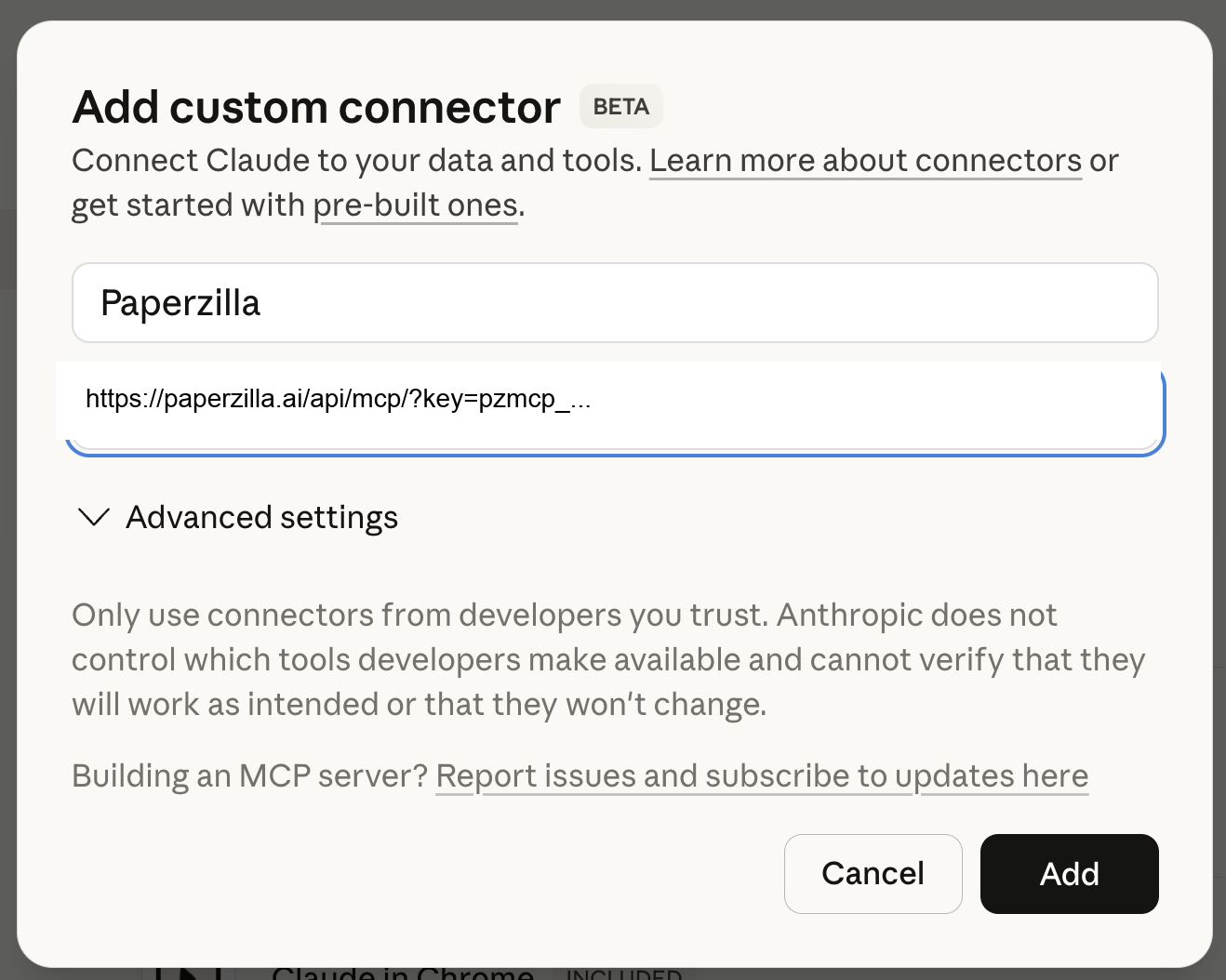 For Claude Desktop, add remote MCP servers through **Settings** > **Connectors**. Anthropic says Claude Desktop does not use remote servers that you place directly in `claude_desktop_config.json`.
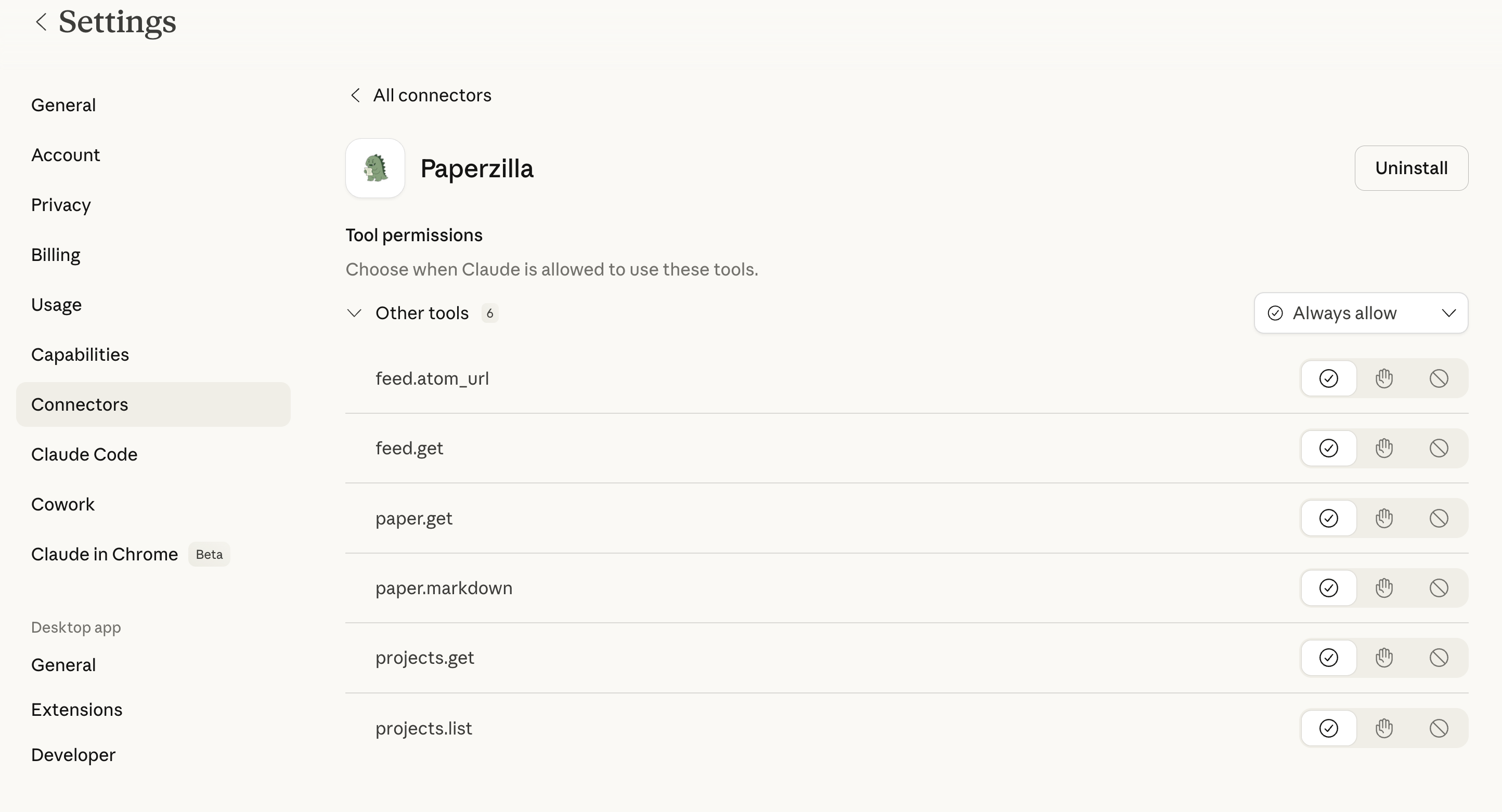
After you save the connector, Claude should show the seven Paperzilla tools. Claude asks for approval by default. We recommend switching the connector to **Always allow**, as shown here, so Claude can use the Paperzilla tools without prompting on each call.
For Claude Desktop, add remote MCP servers through **Settings** > **Connectors**. Anthropic says Claude Desktop does not use remote servers that you place directly in `claude_desktop_config.json`.
After you save the connector, Claude should show the seven Paperzilla tools. Claude asks for approval by default. We recommend switching the connector to **Always allow**, as shown here, so Claude can use the Paperzilla tools without prompting on each call.
 ## Step 4: use Paperzilla in Claude
Enable the connector for the conversation or workflow where you want Claude to use your Paperzilla data. After that, Claude can call the Paperzilla tools directly.
You can ask things like:
* "What Paperzilla projects do I have?"
* "Show must-read papers from my `Autonomous Agents` project from this week."
* "Search my `Autonomous Agents` project for papers about proximity graphs."
* "Compare the two newest must-read papers in my evaluation project."
* "Pull markdown for the TRAJEVAL paper and explain the main contribution."
* "Draft a weekly summary of new must-read papers across all my projects."
## What Claude can access
| Tool | What it returns |
| ---------------- | --------------------------------------------------------------------------- |
| `projects_list` | Your projects |
| `projects_get` | One project |
| `feed_get` | Feed items with filters such as `must_read`, `since`, `limit`, and `offset` |
| `feed_search` | Full-feed search across title, author, abstract, and summary text |
| `feed_atom_url` | The Atom feed URL for one project |
| `paper_get` | Paper metadata and status |
| `paper_markdown` | Paper markdown, or a queued/unavailable status |
Claude-compatible MCP clients should use these underscore tool names. Paperzilla still accepts legacy dotted names like `paper.get` for direct `tools/call` compatibility.
Use `feed_search` when you want Claude to search the full feed, not just browse the feed page by page.
If you want the full protocol and input shapes, see [MCP endpoint (developer appendix)](/api-reference/mcp).
## Troubleshooting
### Claude cannot find the connector
Check that you added Paperzilla under **Settings** > **Connectors** in Claude, not in a local desktop config file.
### Claude reports an auth error or Paperzilla returns `401 Unauthorized`
The key in the connector URL is missing, invalid, revoked, or rotated. Generate a new key in the dashboard and update the connector URL in Claude.
### Claude returns no papers
Try a broader request first. For example, ask for papers from "this month" instead of "today". Also confirm that the project already has matching papers in Paperzilla.
### You want a non-Claude MCP client
Use [Use Paperzilla with MCP](/guides/mcp). Paperzilla supports both header auth and query-string auth, so use the one your client can send.
## Security
* Treat the full connector URL like a password.
* Rotate the MCP key immediately if the URL is exposed.
* Remove the connector in Claude if you no longer want Claude to access Paperzilla.
## Related
* [Use Claude in Slack for research briefs](/guides/claude-slack-briefs)
* [Use Paperzilla with MCP](/guides/mcp)
## Step 4: use Paperzilla in Claude
Enable the connector for the conversation or workflow where you want Claude to use your Paperzilla data. After that, Claude can call the Paperzilla tools directly.
You can ask things like:
* "What Paperzilla projects do I have?"
* "Show must-read papers from my `Autonomous Agents` project from this week."
* "Search my `Autonomous Agents` project for papers about proximity graphs."
* "Compare the two newest must-read papers in my evaluation project."
* "Pull markdown for the TRAJEVAL paper and explain the main contribution."
* "Draft a weekly summary of new must-read papers across all my projects."
## What Claude can access
| Tool | What it returns |
| ---------------- | --------------------------------------------------------------------------- |
| `projects_list` | Your projects |
| `projects_get` | One project |
| `feed_get` | Feed items with filters such as `must_read`, `since`, `limit`, and `offset` |
| `feed_search` | Full-feed search across title, author, abstract, and summary text |
| `feed_atom_url` | The Atom feed URL for one project |
| `paper_get` | Paper metadata and status |
| `paper_markdown` | Paper markdown, or a queued/unavailable status |
Claude-compatible MCP clients should use these underscore tool names. Paperzilla still accepts legacy dotted names like `paper.get` for direct `tools/call` compatibility.
Use `feed_search` when you want Claude to search the full feed, not just browse the feed page by page.
If you want the full protocol and input shapes, see [MCP endpoint (developer appendix)](/api-reference/mcp).
## Troubleshooting
### Claude cannot find the connector
Check that you added Paperzilla under **Settings** > **Connectors** in Claude, not in a local desktop config file.
### Claude reports an auth error or Paperzilla returns `401 Unauthorized`
The key in the connector URL is missing, invalid, revoked, or rotated. Generate a new key in the dashboard and update the connector URL in Claude.
### Claude returns no papers
Try a broader request first. For example, ask for papers from "this month" instead of "today". Also confirm that the project already has matching papers in Paperzilla.
### You want a non-Claude MCP client
Use [Use Paperzilla with MCP](/guides/mcp). Paperzilla supports both header auth and query-string auth, so use the one your client can send.
## Security
* Treat the full connector URL like a password.
* Rotate the MCP key immediately if the URL is exposed.
* Remove the connector in Claude if you no longer want Claude to access Paperzilla.
## Related
* [Use Claude in Slack for research briefs](/guides/claude-slack-briefs)
* [Use Paperzilla with MCP](/guides/mcp)